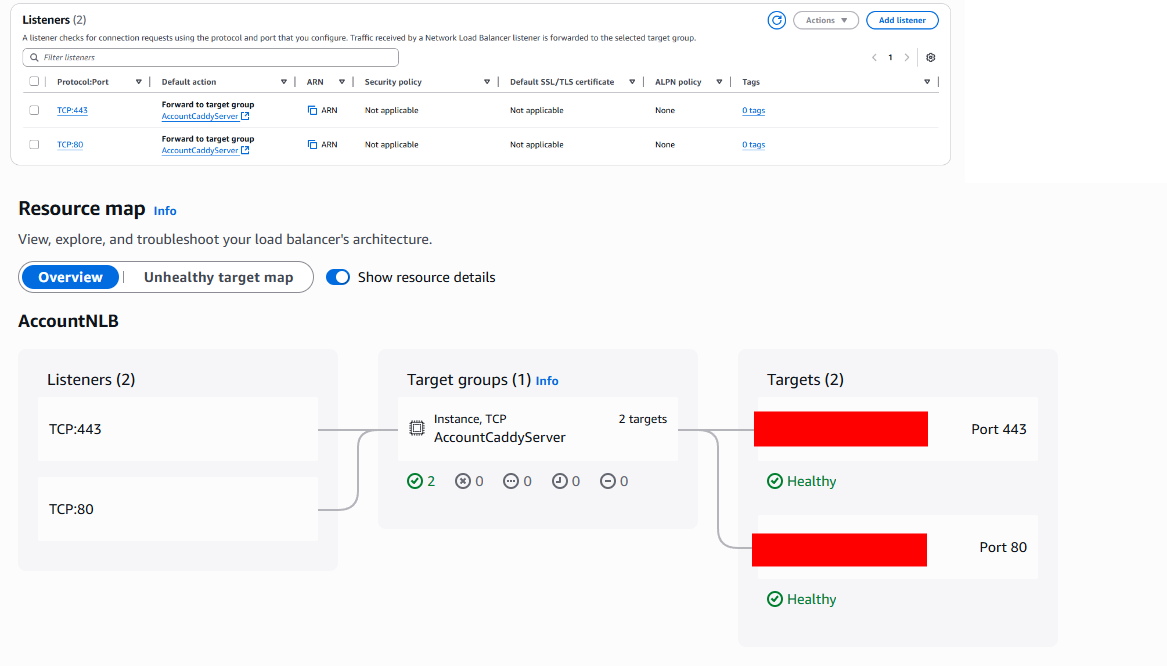
1. The problem I’m having:
Sometime we facing error of SSL sometime with same domain. check logs for more details
2. Error messages and/or full log output:
- Host paymentz.myappz.shop:443 was resolved.
- IPv6: (none)
- IPv4: 3.148.8.146
- Trying 3.148.8.146:443…
- schannel: disabled automatic use of client certificate
- Connected to paymentz.myappz.shop (3.148.8.146) port 443
- using HTTP/1.x
HEAD /login HTTP/1.1
Host: paymentz.myappz.shop
User-Agent: curl/8.11.0
Accept: /
- schannel: remote party requests renegotiation
- schannel: renegotiating SSL/TLS connection
- schannel: SSL/TLS connection renegotiated
- Request completely sent off
< HTTP/1.1 200 OK
HTTP/1.1 200 OK
< Alt-Svc: h3=“:443”; ma=2592000
Alt-Svc: h3=“:443”; ma=2592000
< Cache-Control: no-cache, private
Cache-Control: no-cache, private
< Content-Type: text/html; charset=UTF-8
Content-Type: text/html; charset=UTF-8
< Date: Wed, 22 Oct 2025 01:47:06 GMT
Date: Wed, 22 Oct 2025 01:47:06 GMT
< Server: nginx/1.28.0
Server: nginx/1.28.0
< Vary: Accept-Encoding
Vary: Accept-Encoding
< Via: 1.1 Caddy
Via: 1.1 Caddy
< X-Content-Type-Options: nosniff
X-Content-Type-Options: nosniff
< X-Xss-Protection: 1; mode=block
X-Xss-Protection: 1; mode=block
< - Connection #0 to host paymentz.myappz.shop left intact
============completed============ - Host paymentz.myappz.shop:443 was resolved.
- IPv6: (none)
- IPv4: 3.148.8.146
- Trying 3.148.8.146:443…
- schannel: disabled automatic use of client certificate
- Recv failure: Connection was reset
- schannel: failed to receive handshake, SSL/TLS connection failed
- closing connection #0
curl: (35) Recv failure: Connection was reset
============completed============
3. Caddy version:
v2.10.2
4. How I installed and ran Caddy:
Step 1: Launch and Configure EC2 Instance
- Create EC2 Instance:
- In the AWS Management Console, navigate to EC2 > Instances > Launch an instance.
- Select Ubuntu Server 22.04 LTS or 24.04 LTS (64-bit x86).
- Choose instance type (e.g.,
t3.microfor testing, adjust for production). - Configure storage: Minimum 25 GB General Purpose SSD (gp3).
- Assign a security group with inbound rules:
- SSH (port 22): Source
My IPor specific CIDR. - HTTP (port 80): Source
0.0.0.0/0. - HTTPS (port 443): Source
0.0.0.0/0.
- SSH (port 22): Source
- Download the key pair for SSH access.
- SSH into the Instance:
-
Connect using the IP and key pair:
ssh -i <key-pair.pem> ubuntu@<ip>
-
Step 2: Install and Build Caddy with DynamoDB Support
-
Update Packages and Install Dependencies:
-
Switch to root:
sudo su -
Update package lists:
apt-get update
apt-get install -y debian-keyring debian-archive-keyring apt-transport-https
-
-
Add Caddy xcaddy Repository:
-
Import the GPG key:
curl -1sLf 'https://dl.cloudsmith.io/public/caddy/xcaddy/gpg.key' | gpg --dearmor -o /usr/share/keyrings/caddy-xcaddy-archive-keyring.gpg -
Add the repository:
curl -1sLf 'https://dl.cloudsmith.io/public/caddy/xcaddy/debian.deb.txt' | tee /etc/apt/sources.list.d/caddy-xcaddy.list -
Set permissions:
chmod o+r /usr/share/keyrings/caddy-xcaddy-archive-keyring.gpg chmod o+r /etc/apt/sources.list.d/caddy-xcaddy.list -
Update package lists:
apt-get update
-
-
Install Go:
-
Download and install Go 1.25.1 (or later):
wget https://go.dev/dl/go1.25.1.linux-amd64.tar.gz tar -xvf go1.25.1.linux-amd64.tar.gz mv go /usr/local -
Set environment variables:
echo "export GOROOT=/usr/local/go" >> /etc/profile echo "export PATH=\$PATH:/usr/local/go/bin" >> /etc/profile source /etc/profile -
Verify Go installation:
go version
-
-
Install xcaddy and Build Caddy:
-
Install xcaddy:
apt-get install -y xcaddy -
Build Caddy with DynamoDB storage module:
xcaddy build --with github.com/silinternational/certmagic-storage-dynamodb/v3 -
Move the Caddy binary:
mv caddy /usr/bin/ -
Verify installation and module:
caddy version caddy build-info | grep dynamodb- Expected output confirms
certmagic-storage-dynamodbmodule inclusion.
- Expected output confirms
-
Step 3: Configure Caddyfile
- Create Caddyfile:
-
Create and edit the Caddy configuration file:
mkdir -p /etc/caddy nano /etc/caddy/Caddyfile -
Add the following configuration:
{ storage dynamodb Certificate { aws_endpoint https://dynamodb.us-east-2.amazonaws.com aws_region us-east-1 } on_demand_tls { ask https://<apprunner-service-id>.us-east-1.awsapprunner.com/validate-domain } acme_ca https://acme.zerossl.com/v2/DV90 acme_eab { key_id <key_id> mac_key <hmac> } email <email> } https:// { tls { on_demand } @dynamic host {http.request.host} handle @dynamic { reverse_proxy <server address> } } -
Replace
<apprunner-service-id>with the actual App Runner service ID from the prior setup -
Ensure
Certificatematches the DynamoDB table name created earlier. -
Adjust
aws_regionif using a different region.
-
- Validate Caddyfile:
-
Check syntax:
caddy validate --config /etc/caddy/Caddyfile
-
Step 4: Configure AWS Credentials
-
Create AWS Configuration Directory:
-
As the
ubuntuuser:mkdir -p ~/.aws cd ~/.aws
-
-
Configure AWS CLI:
-
Edit
config:nano config-
Add:
[default]
region = us-east-2
output = json
-
-
Edit
credentials:nano credentials-
Add:
[default] aws_access_key_id = <your_access_key_here> aws_secret_access_key = <your_secret_key_here> -
Replace
<your_access_key_here>and<your_secret_key_here>with valid AWS credentials.
-
-
Best Practice: Preferably, attach an IAM role to the EC2 instance with DynamoDB permissions instead of hardcoding credentials:
{ "Version": "2012-10-17", "Statement": [ { "Effect": "Allow", "Action": [ "dynamodb:PutItem", "dynamodb:GetItem", "dynamodb:Query", "dynamodb:Scan" ], "Resource": "arn:aws:dynamodb:us-east-1:<account-id>:table/Certificate" } ] }- Attach this role to the EC2 instance via the AWS Management Console (EC2 > Instances > Actions > Security > Modify IAM role).
-
Step 5: Set Up Caddy as a System Service
-
Create Systemd Service File:
-
Create and edit the service file:
nano /etc/systemd/system/caddy.service -
Add:
[Unit]
Description=Caddy Web Server
After=network.target

[Service]
ExecStart=/usr/bin/caddy run --environ --config /etc/caddy/Caddyfile
ExecReload=/usr/bin/caddy reload --config /etc/caddy/Caddyfile
Restart=always
User=root

[Install]
WantedBy=multi-user.target
-
-
Enable and Start Caddy Service:
-
Reload systemd:
systemctl daemon-reload -
Enable and start Caddy:
systemctl enable caddy systemctl start caddy -
Check service status:
systemctl status caddy- Confirm the service is
active (running).
- Confirm the service is
-
a. System environment:
Distributor ID: Ubuntu
Description: Ubuntu 24.04.3 LTS
Release: 24.04
Codename: noble
b. Command:
/usr/bin/caddy run --environ --config /etc/caddy/Caddyfile
d. My complete Caddy config:
{
    storage dynamodb certificates_table {
        aws_endpoint https://dynamodb.us-east-2.amazonaws.com
    }
    on_demand_tls {
        ask <validate_domain_endpoint>
    }
    acme_ca https://acme.zerossl.com/v2/DV90
    acme_eab {
        key_id <kid>
        mac_key <mkey>
    }
    log {
        output file /var/log/caddy/caddy.log
    }
   ocsp_stapling off
   auto_https off
   email <email>
}
http:// {
    redir https://{http.request.host}{http.request.uri} 301
}
# Catch-all for dynamic domains (no explicit host = matches all via SNI)
https:// {
    tls {
       on_demand
       #protocols tls1.2 tls1.3
    }
    @dynamic host {http.request.host}
    handle @dynamic {
        # reverse proxy to accounts server
        reverse_proxy <Application_server_ip> {
            header_up X-Real-IP {remote_host}
            header_up X-Forwarded-For {remote_host}
            header_up X-Forwarded-Proto {scheme}
            header_up X-Forwarded-AWS-Elb {http.request.header.X-Forwarded-AWS-Elb}
        }
    }
}